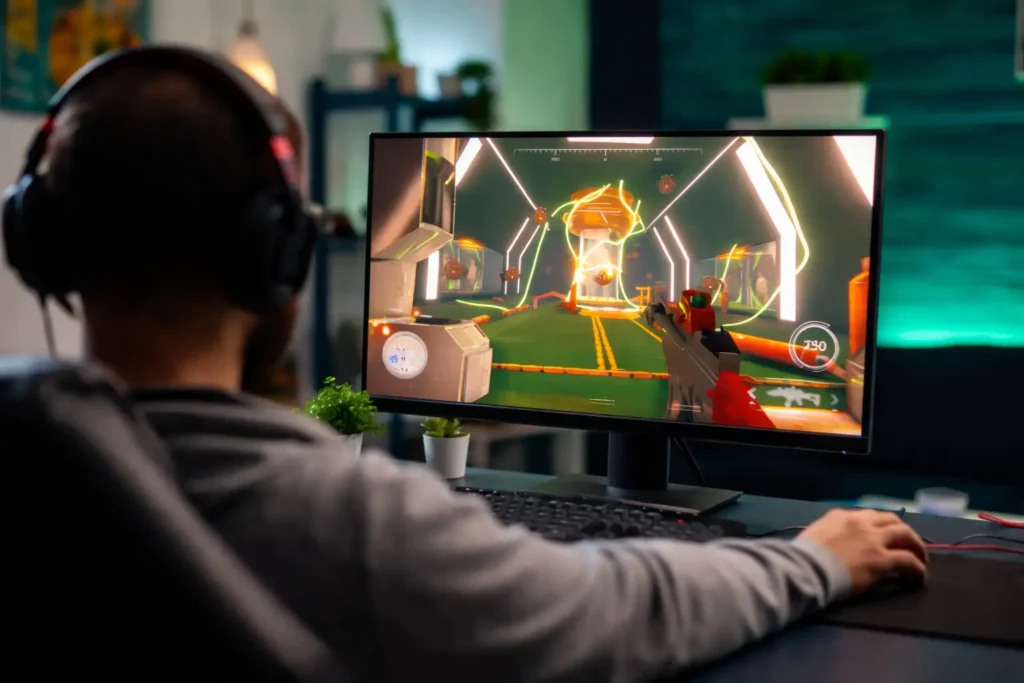
Improving user experience through technologies on computer monitors is receiving increasing attention from many brands. Modern features such as QuickFit, Trace Free, Dynamic Action Sync, and others have been introduced and continue to be improved. Let’s explore the best monitor technologies available today together with bestmonitorradar.
Design and Productivity Features
What Is QuickFit? What Are Its Benefits?
QuickFit is an exclusive technology from ASUS that allows users to preview and edit images or artistic products accurately at real size, with grid overlays displayed on the screen. This feature personalizes the experience by allowing users to adjust dimensions according to their needs through the following functions:
Customization
To adjust the frame height, move the Menu button (5-way) up or down. For width adjustment, move the Menu button (5-way) left or right. To quickly switch measurement units between millimeters and inches, press the Menu button (5-way) for 3 seconds.

▲ Easy height adjustment
Ruler
The virtual ruler mode displays a ruler at the top and left side of the screen. To switch between metric and inch units, press the Menu button (5-way) for more than 3 seconds.
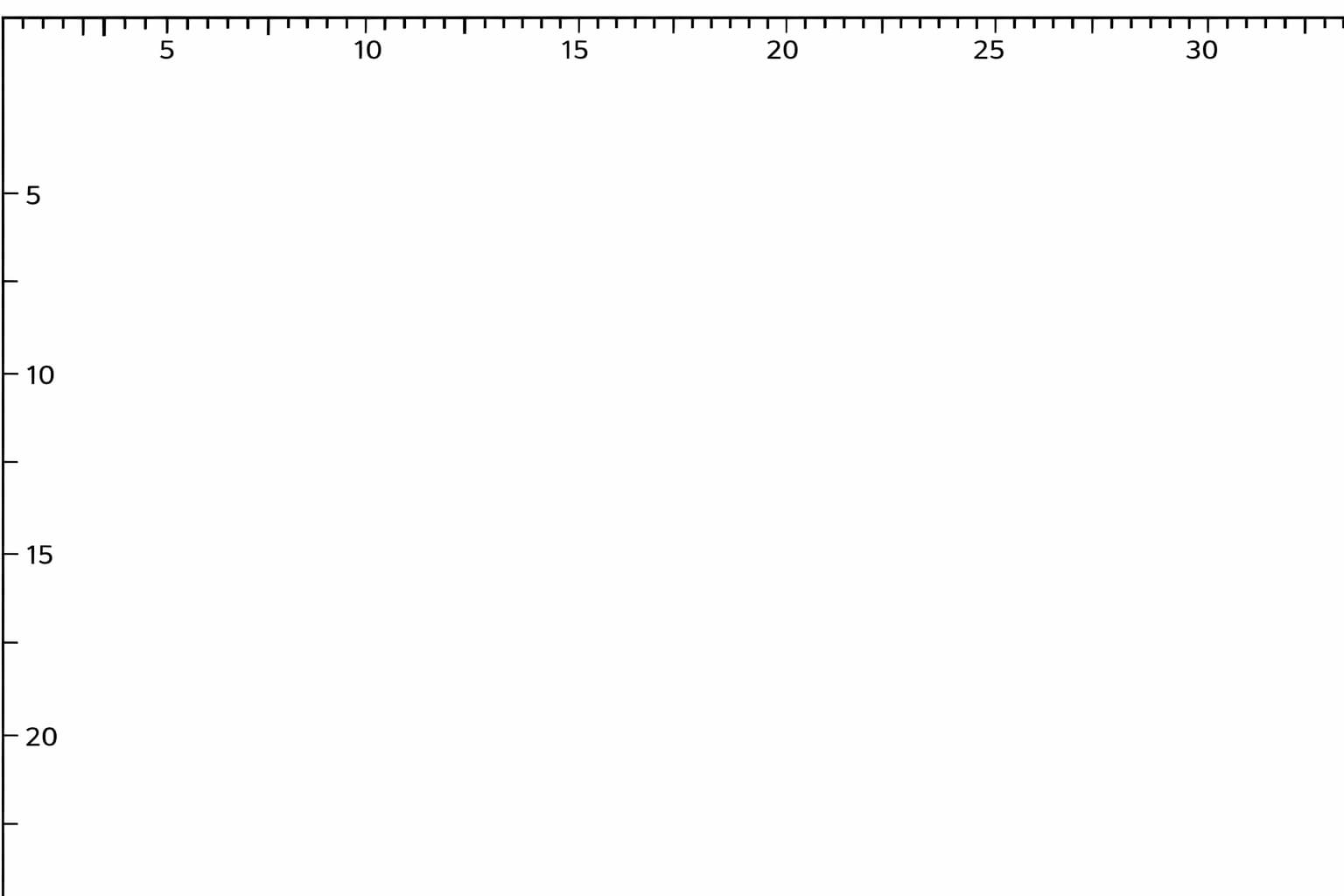
▲ Virtual ruler provides realistic measurement
Alignment
Helps users design, arrange content, and maintain consistent layouts on a single page using alignment mode.
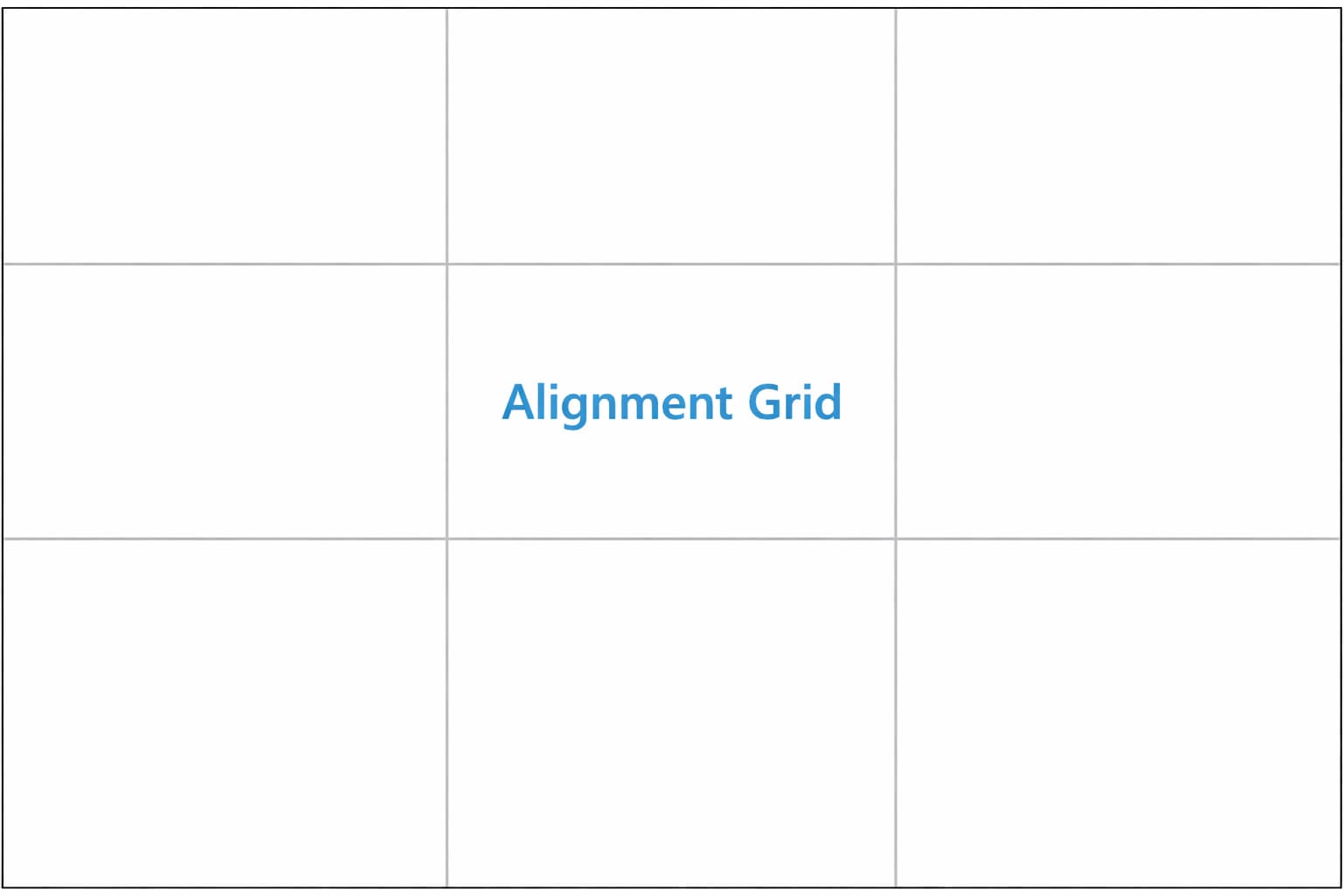
▲ Neat and easy-to-use alignment layout
A4 and B5 Modes
A4 and B5 modes allow users to view documents at real size directly on the computer monitor. This helps users better visualize their products in real-world scale.
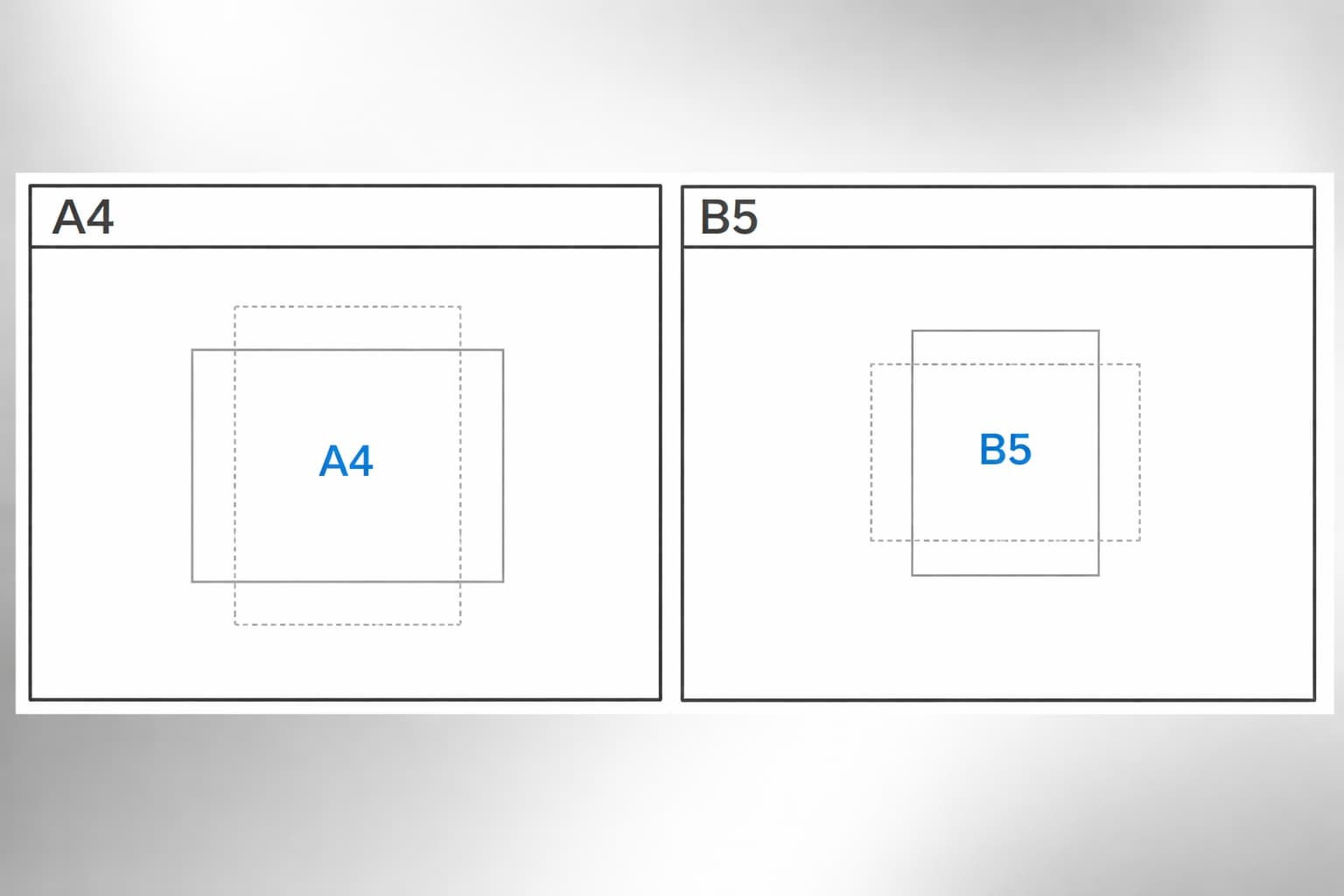
▲ Standard paper sizes help view documents at true size
Performance and Motion Technologies
What Is Trace Free? What Are Its Benefits?
Trace Free works to help reduce monitor response time. As a result, pixel response on the screen becomes faster, allowing motion to keep up with fast-moving graphics in games.

▲ Reduces ghosting or trailing blur behind moving colors Trace Free technology is available on most ASUS monitor lines, such as the ASUS TUF Gaming series.
Trace Free improves response speed down to 1ms. This helps ensure smooth visuals without freezing, especially in high-speed games.
Dark Scene Visibility Technologies
What Is Black Stabilizer?
Black Stabilizer is a dark balance feature. This technology analyzes and adjusts brightness levels in real time to improve visibility in dark areas without reducing overall image quality.
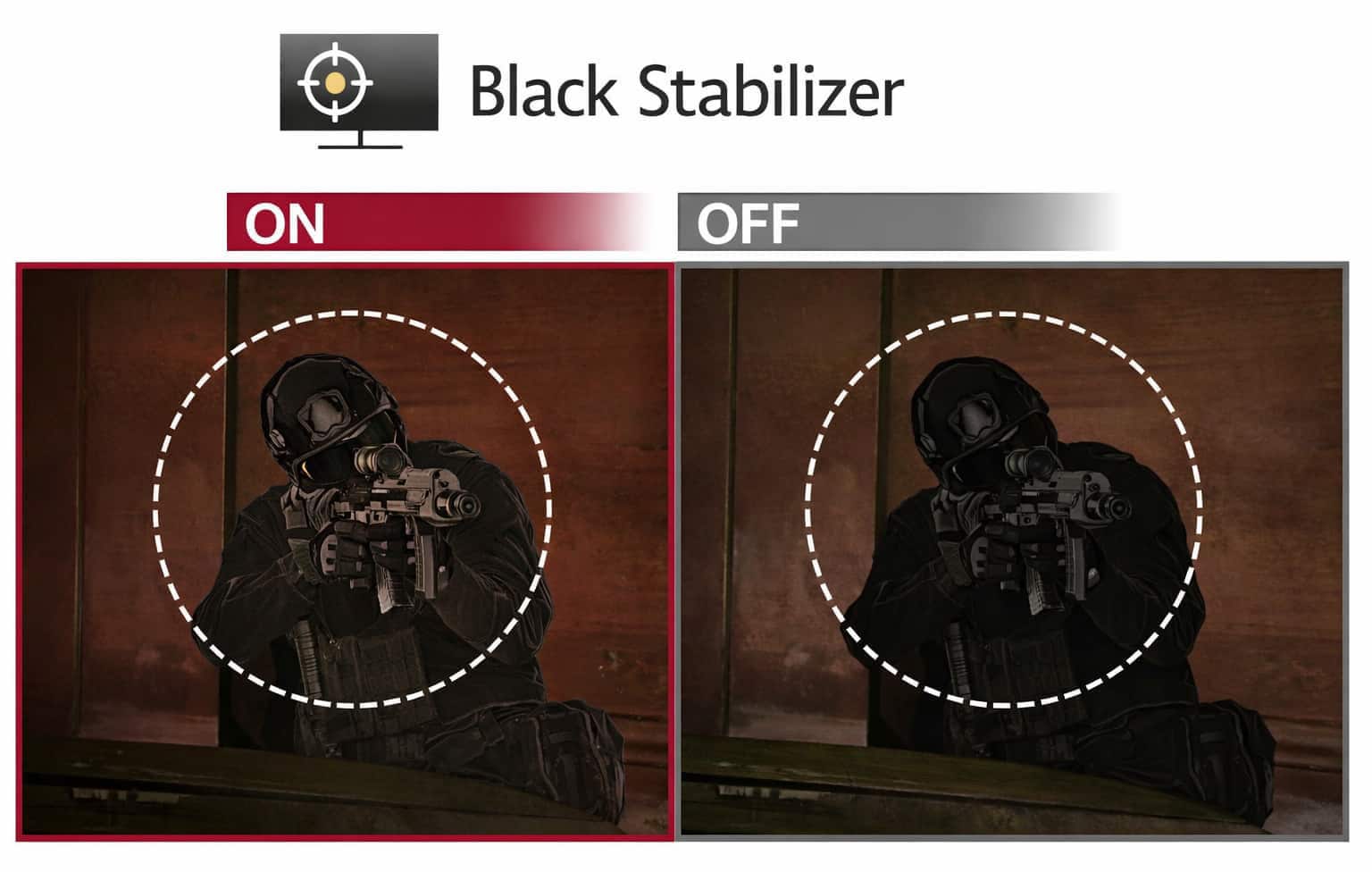
▲ Black Stabilizer improves gaming performance in dark scenes
Black Stabilizer is highly rated when playing games with dark graphical environments. This feature helps players see obstacles and opponents more clearly, increasing winning chances in games that require high accuracy and fast pacing.
What Is Black Equalizer?
Black Equalizer is a feature that increases brightness details in dark areas. This allows the monitor to adjust contrast in shadow regions without affecting bright areas.
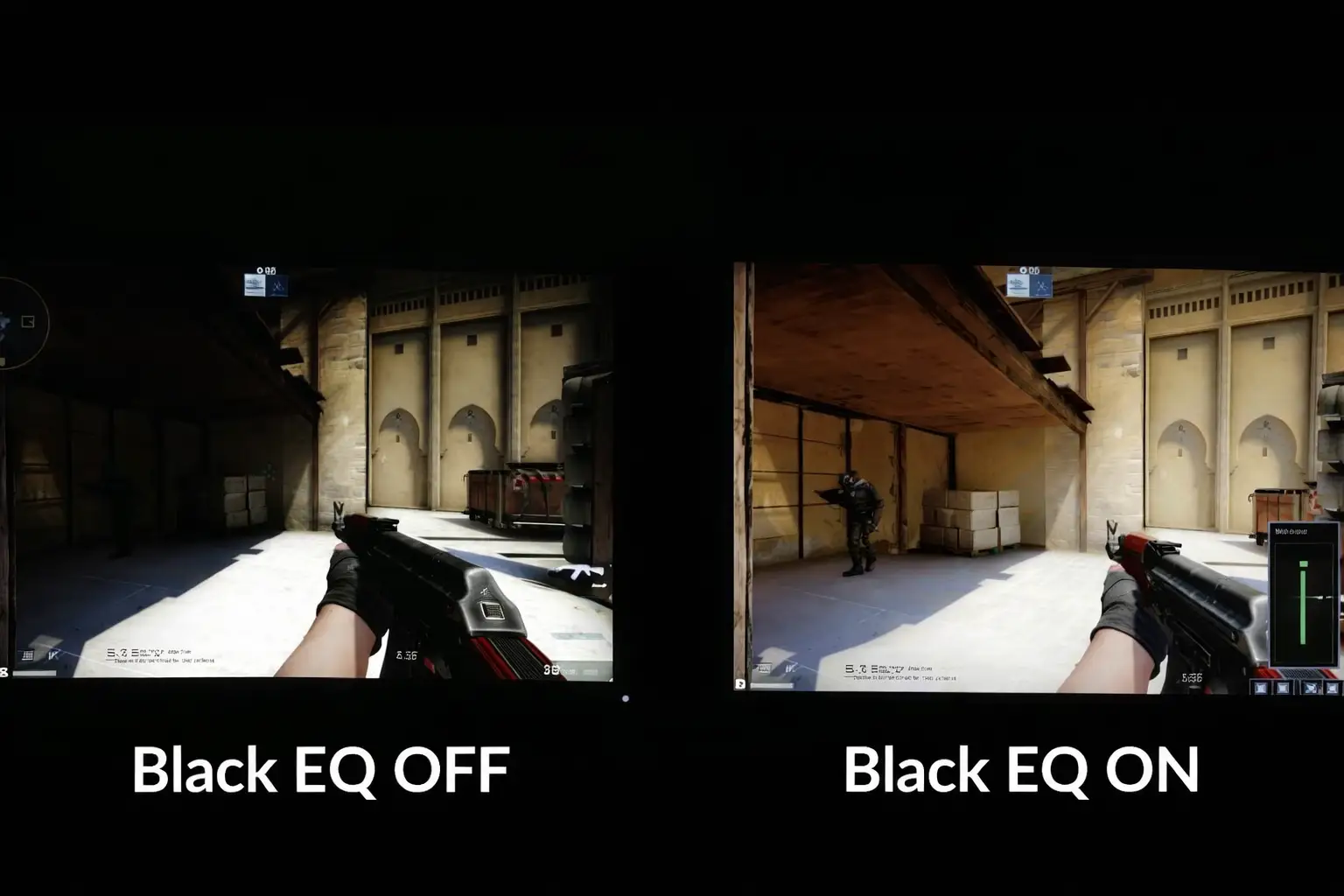
▲ A feature that helps gamers see more clearly in the dark
The key benefit of this feature is brightening dark areas without overexposing bright regions. Exposure adjustment only affects shadow areas and prevents highlights from becoming too bright, allowing users to easily operate and detect opponents in games with low contrast.
What Is MSI HDCR?
HDCR is a display feature found on MSI monitors. This feature helps improve the visibility of dark areas on the screen by adjusting contrast and brightness in a balanced way.
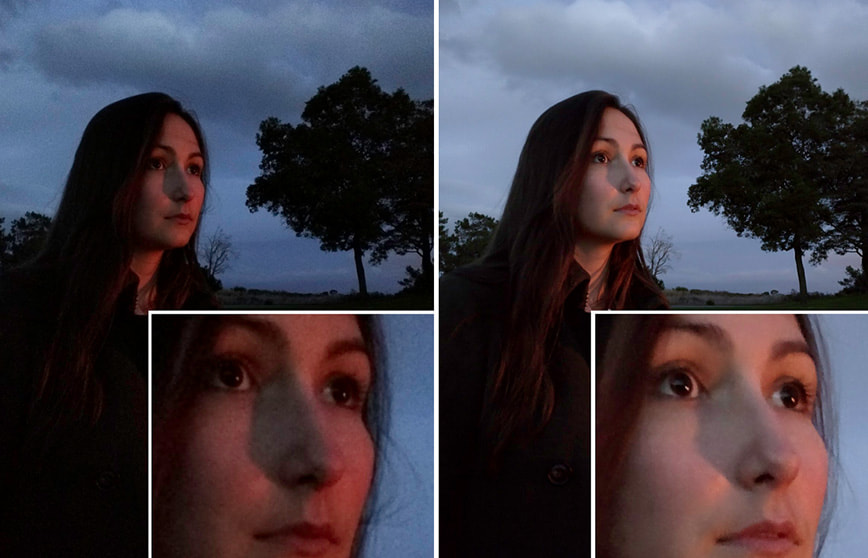
▲ HDCR helps improve dark scene visibility on MSI monitors
When HDCR is enabled, dark scenes become clearer without making bright areas too strong. This helps users see details that are usually difficult to notice in low-light scenes, especially during gameplay. HDCR is useful when playing games with dark environments, where enemies or objects can blend into shadows. By improving visibility in these areas, players can react more accurately and feel more comfortable while playing.
What Is ASUS Shadow Boost?
ASUS Shadow Boost is a feature available on ASUS monitors that helps enhance brightness and contrast between dark and bright areas. The purpose of this feature is to make dark scenes easier to see without affecting the rest of the image.
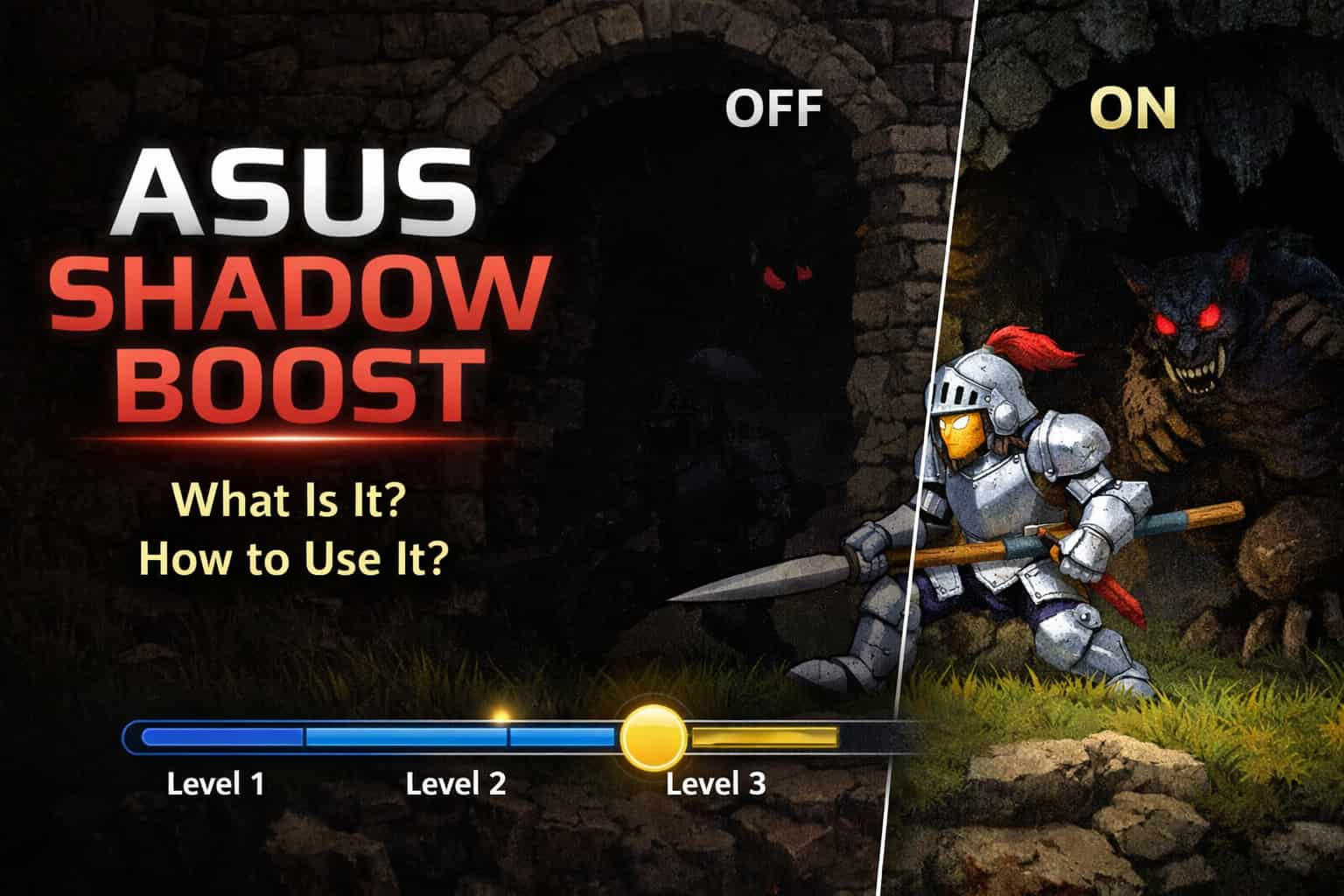
▲ Shadow Boost helps improve visibility in dark scenes
When Shadow Boost is turned on, shadow areas on the screen become brighter, helping users notice details, objects, and opponents more clearly. This is especially helpful in games with dark maps or low-light environments.
ASUS Shadow Boost is commonly used on ASUS gaming monitors and helps improve the overall viewing experience during gameplay.
Motion Clarity Features for Gaming
What Are DyAc and DyAc+?
DyAc and DyAc+ are motion clarity technologies used on BenQ and ZOWIE gaming monitors. These features are designed to reduce motion blur during fast on-screen movement.
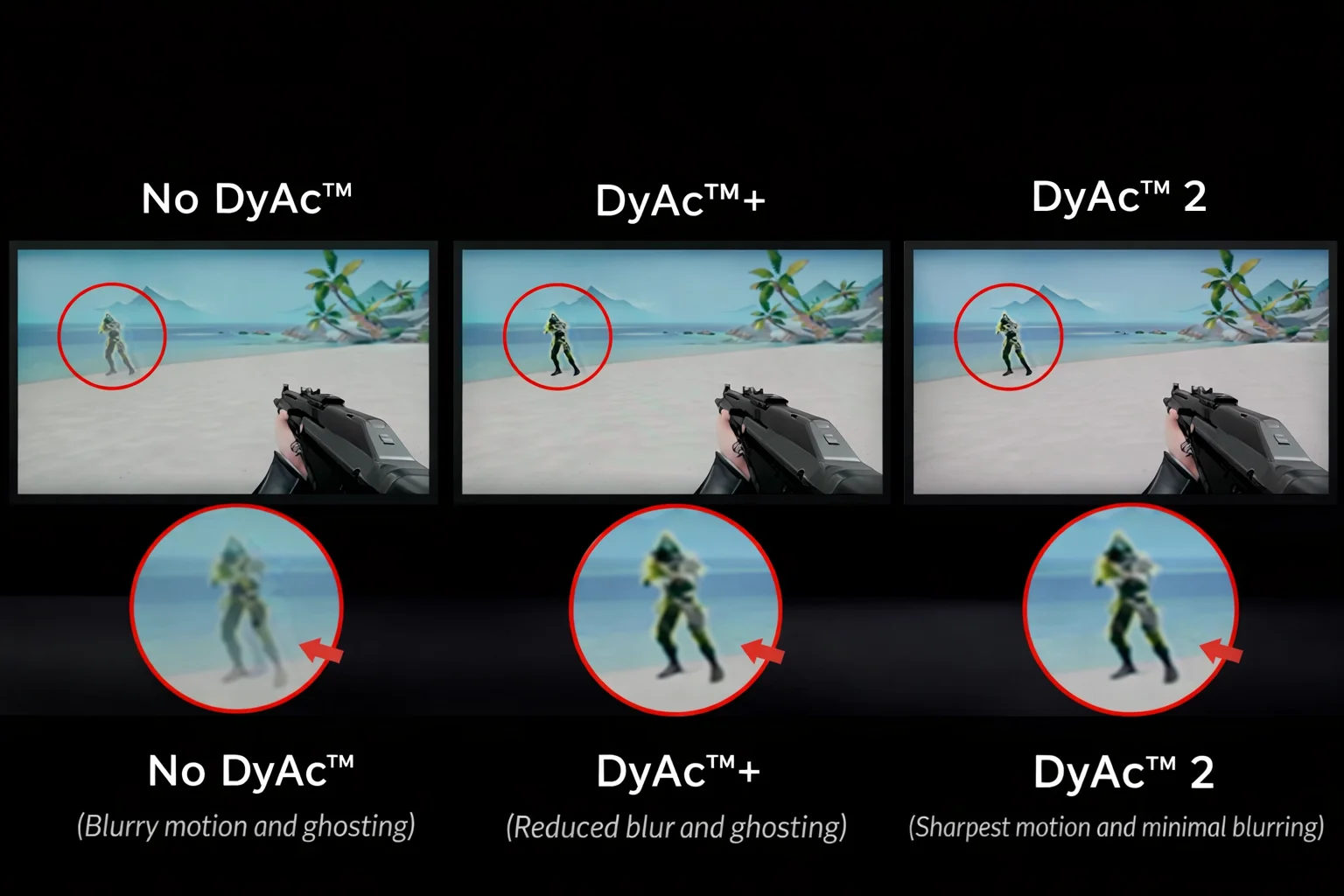
▲ DyAc helps reduce motion blur during fast action
When DyAc or DyAc+ is enabled, moving objects appear sharper and clearer, making it easier to track fast action on the screen. This is especially useful in competitive games where quick reactions are important.
DyAc and DyAc+ help improve motion clarity in fast-paced games, allowing players to focus better during intense gameplay moments.
What Is Aim Stabilizer?
Aim Stabilizer is a feature found on Gigabyte and AORUS monitors. This feature is designed to improve clarity during fast movement by reducing motion blur.
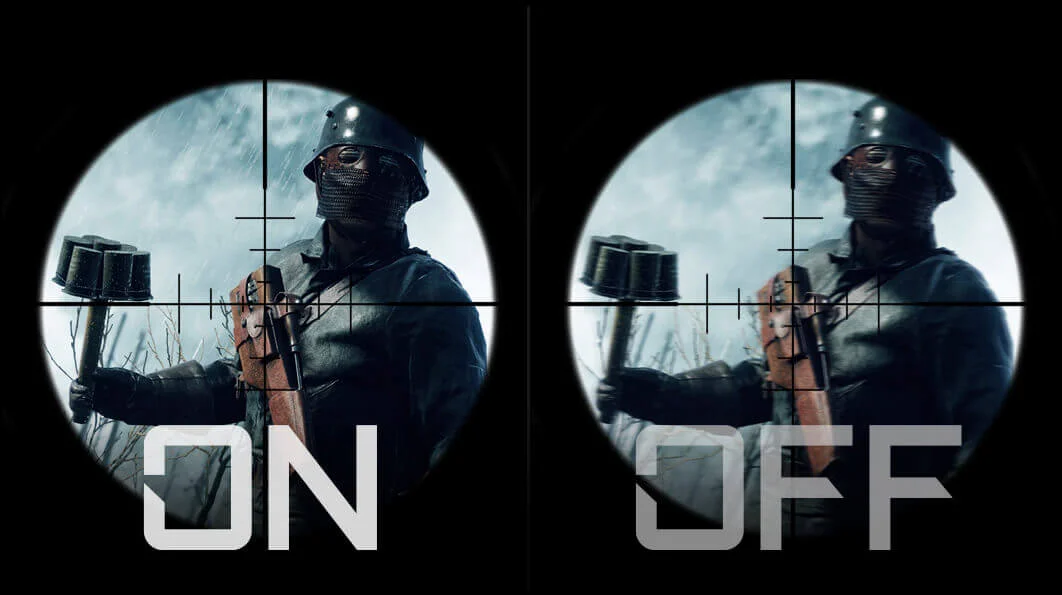
▲ Aim Stabilizer improves clarity during fast motion
When Aim Stabilizer is turned on, the screen becomes clearer during quick camera movements, helping users aim more accurately in games. This can be useful in shooting games where precision is important.
Aim Stabilizer helps players maintain better control during fast gameplay, especially in situations that require quick and precise movements.
What Is ViewSonic Black Stabilization?
Black Stabilization is a feature available on ViewSonic monitors that focuses on improving visibility in dark areas. This feature adjusts brightness in shadow regions without changing bright parts of the image.
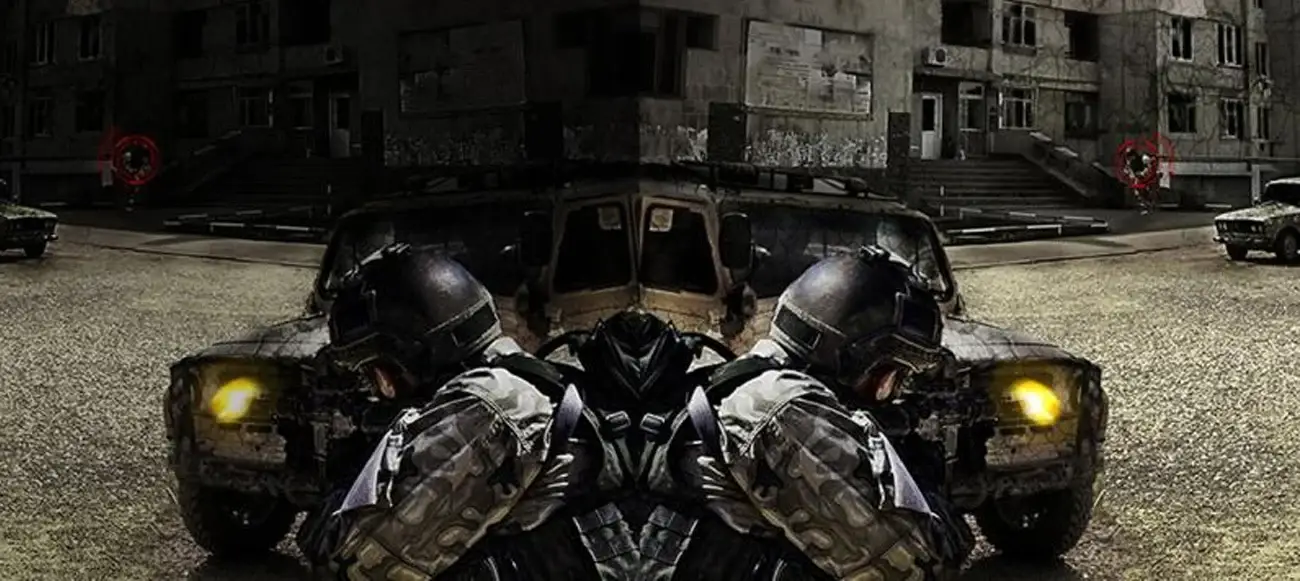
▲ Black Stabilization improves visibility in dark areas
When enabled, dark scenes become easier to see, allowing users to notice details that might otherwise be hidden. This can be helpful in games and other content with low-light environments.
Black Stabilization helps provide a more balanced image and improves comfort when viewing dark scenes on the screen.
Input Lag Reduction Technology
What Is Dynamic Action Sync? How to Enable It?
Dynamic Action Sync (DAS) is a dynamic image synchronization mode. This feature is automatically activated at a vertical frequency of 60Hz and is one of LG’s most notable features on gaming monitors.
To enable Dynamic Action Sync, follow these steps:

▲ Dynamic Action Sync helps minimize input signal delay
Open the control panel → Menu → Selection Function → DAS Mode → Select On or Off.
Notes:
- Enabling DAS disables frame buffering and helps reduce input lag.
- This feature is only available in Video mode.
LG notes regarding DAS mode
In Game mode, DAS ON is set by default and therefore this option is disabled.
Manufacturer notes when enabling DAS mode
The screen may flicker when DAS mode is turned On or Off.
Dynamic Action Sync helps eliminate output stuttering and minimizes display latency when the system processes and outputs images. This feature is especially useful when playing games with sudden situations, such as unexpected enemy appearances or fast action skills.