There are many devices that are called gaming devices, but among them, one of the elements that has a large influence on actual play is the monitor. Because a monitor shows images frame by frame in very short time intervals, it is a device where quality directly affects what the player sees.
What users expect from a monitor differs depending on the person. However, from the point of view of a gamer, one area that often becomes important is visibility. Being able to see what is happening on the screen clearly is closely related to gameplay.
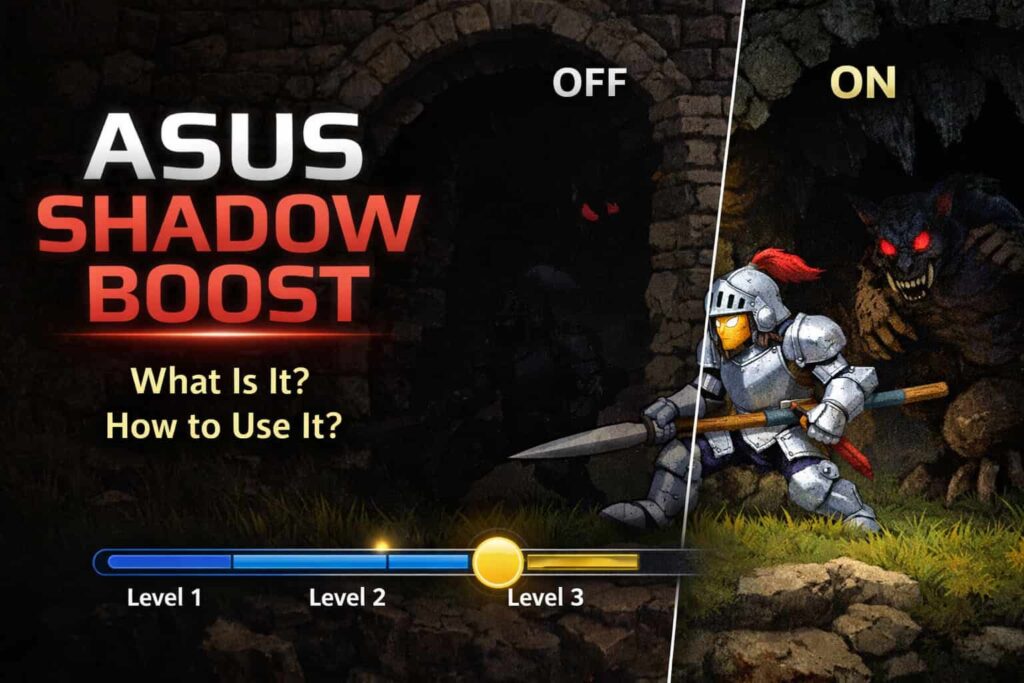
For that reason, this time, we will explain a monitor function called Shadow Boost.
Simple Function That Does Not Stand Out at First
Before explaining Shadow Boost itself, it is necessary to briefly touch on the gaming features found in monitors made by ASUS.
ASUS gaming monitors include many image-related functions. Some are easy to understand, while others are difficult to judge unless they are actually used. Shadow Boost is not a function that stands out in specifications, and it is easy to overlook.
However, depending on the game being played, it can become a useful function. Other monitors use similar visibility functions, including LG Black Stabilizer.
Why Dark Areas Are Difficult to See
Many games include dark scenes. These may be indoor areas, night stages, underground locations, or areas with strong shadows. In such scenes, enemies or objects often blend into the background, making them difficult to recognize.
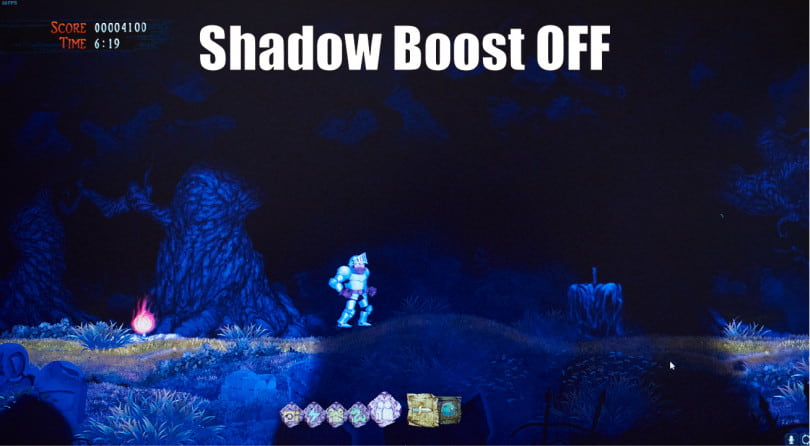
▲ A scene from Ghosts ’n Goblins Resurrection. Enemies hiding in the darkness are difficult to see with Shadow Boost turned off.
When this happens, many players try to adjust brightness or gamma inside the game. However, increasing brightness affects the entire image. As a result, bright areas may become too bright, and the overall balance of the image may be lost.
Because of this, improving visibility by using only game settings has its limits.
What Shadow Boost Does
Shadow Boost is a function that improves visibility in dark areas. It works by making darker parts of the image easier to see, while preventing bright areas from becoming excessively bright.
Unlike brightness adjustment, Shadow Boost does not raise the brightness of the entire screen. Instead, it mainly affects shadowed areas.
Because of this, it is possible to improve visibility without greatly changing the overall appearance of the image. On MSI monitors, HDCR is used to change how dark scenes appear.
How to Enable Shadow Boost
To use Shadow Boost, it can be set from the monitor’s menu.
First, open the on-screen display using the button on the back of the monitor. After opening the menu, move to the section related to image settings.
From there, select Shadow Boost.
Shadow Boost has multiple levels. By selecting a level, the visibility of dark areas changes. As the level is increased, dark areas become easier to see.
After selecting the desired level, close the menu. The setting is applied immediately.
The level can be changed again depending on the game.
▲ This video shows how Shadow Boost can be enabled and adjusted from the monitor’s on-screen menu.
Shadow Boost Levels
Shadow Boost has three levels.
At Level 1, the effect is small. Dark areas become slightly easier to see, but the image does not change much.
At Level 2, the effect becomes clearer. Details hidden in shadows are easier to recognize, and movement in dark areas becomes more noticeable.
At Level 3, the effect is strong. Even very dark areas become visible. However, at this level, contrast may decrease, and the image may appear flatter.
As the level increases, visibility improves, but the image changes as well.
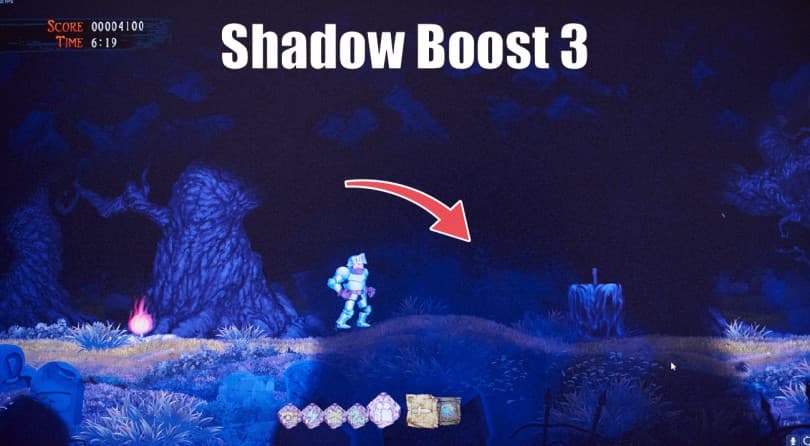
▲ By increasing the Shadow Boost level, the enemy can be detected.
Shadow Boost in Shooting Games
In shooting games, enemies often appear from dark areas such as corners or doorways. When Shadow Boost is turned off, these enemies may be difficult to see until they move.
When Shadow Boost is enabled, enemies become easier to recognize at the moment they appear. Even small movements stand out more clearly against the background.
This makes Shadow Boost useful in games where quick visual recognition is important. A function called ASCR is also used on some monitors to adjust contrast based on the scene.
Shadow Boost in Other Game Genres
In action games that involve exploration, Shadow Boost helps make dark environments easier to navigate. Objects, paths, and enemies can be seen more clearly without repeatedly adjusting brightness.
On the other hand, in games that place importance on atmosphere, darkness itself is part of the experience. In such games, using Shadow Boost may reduce the intended feeling of darkness.
For this reason, Shadow Boost should be adjusted depending on the title.
Difference Between Shadow Boost and Brightness Adjustment
Brightness adjustment affects the entire image equally. When brightness is increased, both dark and bright areas change.
Shadow Boost works mainly on dark areas. Bright areas remain closer to their original brightness.
Because of this difference, Shadow Boost allows improved visibility while keeping the overall image closer to its original state.
Should You Enable Shadow Boost?
Whether Shadow Boost should be enabled depends on the game being played.
In games where visibility directly affects performance, enabling Shadow Boost can be helpful. In games where atmosphere is important, turning it off or using a lower level may be better.
Shadow Boost is not a function that needs to be turned on at all times. It is a setting that should be adjusted according to the situation.
